Item Attributes
General
Item attributes are used to classify items and find them based on their characteristics. Attributes can be assigned to each item either individually or through the attributes predefined for the item category.
The following sections describe the functional enhancements to item attributes in KUMAVISION factory365. For basic information on this area, see the Microsoft Dynamics 365 Business Central help.
Setup
Item Attributes
Before you can work with item attributes, you must set up the required attributes and their values. To do so, use the search function to open the Item Attributes. Choose New on the ribbon to define a new item attribute using the tables below.
General
| Field | Description |
|---|---|
| Name | Enter a name for the attribute. |
| Type | Specifies the type of the attribute. The following options are available: • Option • Text • Integer • Decimal • Date Note When you select a type, the system automatically populates the NAV Data Type field. |
| NAV Data Type | This field is updated when you change the Type field and checks against the data type defined in the database. |
| Default Value | Specify the value to use as the default attribute value. |
| Sorting | Specify the sort order for the tabular view. If you leave this field blank, attributes are sorted by name. |
Unit of Measure Code
| Field | Description |
|---|---|
| Unit of Measure Code | Specify a unit of measure code here. Assigning a code also populates the Unit of Measure field in the background and may overwrite an existing value. Only available for numeric types, and for the Option type if Integer or Decimal has been assigned here. |
| Unit of Measure | Specifies the base unit of measure for the unit of measure code. |
Note
This section of the online help only explains the additional setup options for item attributes in KUMAVISION factory365. For the online help on the general setup options, see here.
Where Used
Choose Where-Used on the ribbon to display the records that currently have the corresponding item attribute assigned in the system.
| Field | Description |
|---|---|
| Table | The table ID used by the system for the item, item category, and item variants or versions. This field is not displayed. |
| No./Code | Specifies the item number from the item, item variant, or item version, as well as the code from the item category and the entry number from the nonstock item. |
| Variant Code | The variant code from the item variant or item version. For items and item categories, the field remains empty. |
| Source Sub ID 2 | Specifies the item version code from the item version. For items, item categories, and item variants, the field remains empty. |
| Description | Specifies the description. |
Choose Show card on the ribbon to display the corresponding card.
Item Attribute Assignment
KUMAVISION factory365 allows you to use item attributes not only for items, but also for nonstock items, item variants, and item versions, and provides the full range of functionality for each of them.
Note the following inheritance logic:
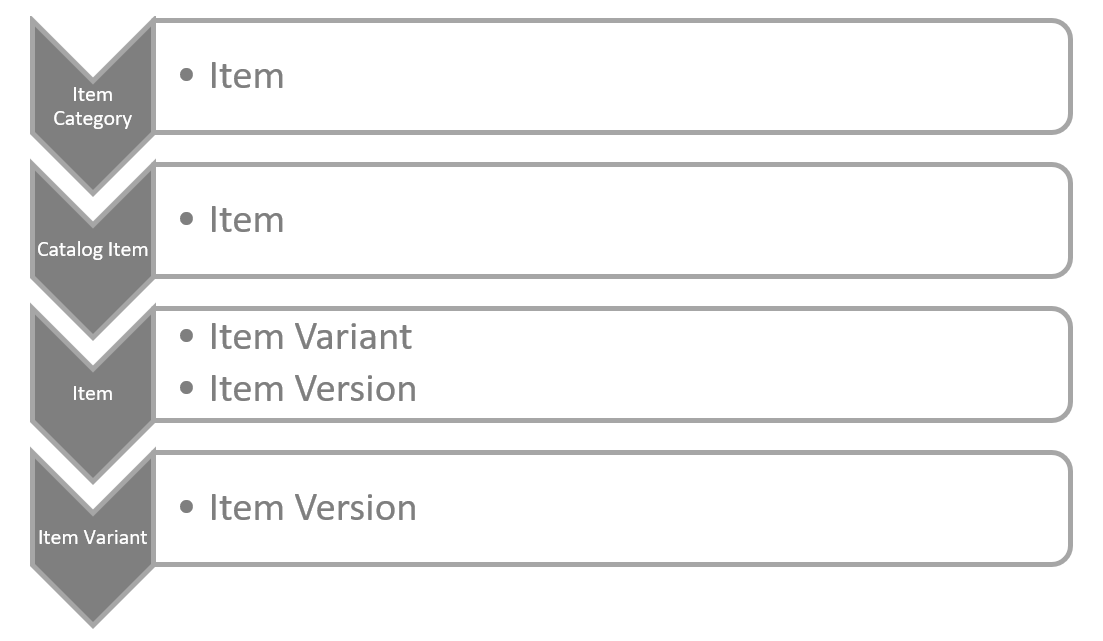
The picture shows horizontally what can be derived from which element, and vertically how it can be inherited within the element itself.
Item
On the item card, choose Attributes on the ribbon to assign attributes to the item. The Item Attributes FactBox on the item card directly displays the data of the assigned attributes.
Item Category
On the item category card, choose Attributes on the ribbon to assign attributes to the item category. The Item Attributes FactBox on the item category card directly displays the data of the assigned attributes.
If you assign this item category to an item, the attributes from the item category are transferred to the item. If the attributes of the item category are changed later, these changes are inherited by the assigned items.
Note
The attributes of parent item categories are inherited by the child item categories. However, the inherited attributes cannot be changed in the child item categories. They can always be adjusted individually for each item, item variant, and item version.
Catalog Item
On the Catalog Item card, choose Attributes on the ribbon to assign attributes to the catalog item. The Item Attributes FactBox on the catalog item card directly displays the data of the assigned attributes.
If an item is created from a catalog item, the attribute definitions from the catalog item are transferred to the item.
Note
After the item has been created, attributes can no longer be maintained via the catalog item, but only on the corresponding item card.
If you subsequently assign an item category to the item you created, any item attributes defined for that item category are inherited by the item.
Item Variant
When you create a new item variant, all attribute assignments from the item are copied to the variant, where you can adjust them to meet your requirements.
To assign attributes to the item variant, choose Attributes on the ribbon for the item variant. The Item Attributes FactBox displays the data for the assigned attributes directly.
Note
Changes to the values of item attributes on the item are generally not transferred to the variants.
Item Version
When you create a new item version, all attribute assignments from the item or variant are copied to the version, where you can adjust them to meet your requirements.
To assign attributes to the item version, choose Attributes on the ribbon for the item version. The Item Attributes FactBox on the item version directly displays the data for the assigned attributes.
Note
You cannot define Print Administration for sales in the item version.
When an item version is created, the item attributes of the item are generally transferred to the new item version.
The transfer of new attributes from the associated item or variant (for existing item versions) is performed depending on the definition in the Update IV from Attribute field in the Engineering & Design Setup:
| Option | Description |
|---|---|
| None | No attributes are transferred. |
| Only New | New attributes are transferred only to item versions with the status New. |
| Till Certified | New attributes are transferred to item versions with the status New or Certified. |
| Till Certified Reopen | New attributes are transferred to item versions with the status New or Certified. If the item version is certified, its status is reset to New so that manual editing or review is required. |
| All | Attributes are always transferred. |
Attribute Search
In the standard application, you can use the Filter by Attributes option on the Items list to control which items are displayed. Because item attributes are now also used for item variants and item versions, this filter option is incomplete, as it cannot be used for item variants, item versions, or catalog items. For this reason, the Item Attribute Search is available.
You can open the Attribute Search directly using the search function, or from the documents listed below:
- Assembly BOM
- Assembly Order
- Project Planning Line
- Production BOM
- Purchase Quote
- Blanket Purchase Order
- Purchase Order
- Purchase Invoice
- Purchase Return Order
- Purchase Credit Memo
- Sales Quote
- Blanket Sales Order
- Sales Order
- Sales Return Order
- Sales Credit Memo
When you open the Attribute Search from documents, the data of the source line is determined and maintained as header data. If you have not yet made any selection other than setting the Type to Item, no initialization is performed.
Note
In the listed documents, you can use the Attribute Search to filter by item and transfer the result directly to the document. Note that the item version is not considered for consuming documents.
If you want to transfer a catalog item, you must first create it as an actual item from the catalog item. Then restart the search or directly enter the newly created item.
In the header of the Attribute Search, you can have the search lines suggested by filling in the Item Category, Item, Item Variant, and Item Version fields.
You should fill in the fields hierarchically, from Item Category to Item Version. The subsequent selections are restricted according to the hierarchy.
If you do not fill in the fields hierarchically, the system determines and fills in the higher-level data. For example, if you start with the Item Version, the system determines and fills in the Item Category, Item, and Item Variant as defined in the item version.
Microsoft, Microsoft Dynamics, and Microsoft Dynamics 365 are trademarks of the Microsoft group of companies.