Service#
The service integration in KUMAVISION factory365 extends Service Management in Microsoft Dynamics 365 Business Central by adding a new document: the service structure.
The service structure acts as the link between production processing and service processing.
It is used to prepare information from production, such as the production order, for service purposes and to create service items also for included assemblies. In addition, the service structure is the data source for service item components.
Note
Please note that this feature extension in KUMAVISION factory365 requires the Premium experience.
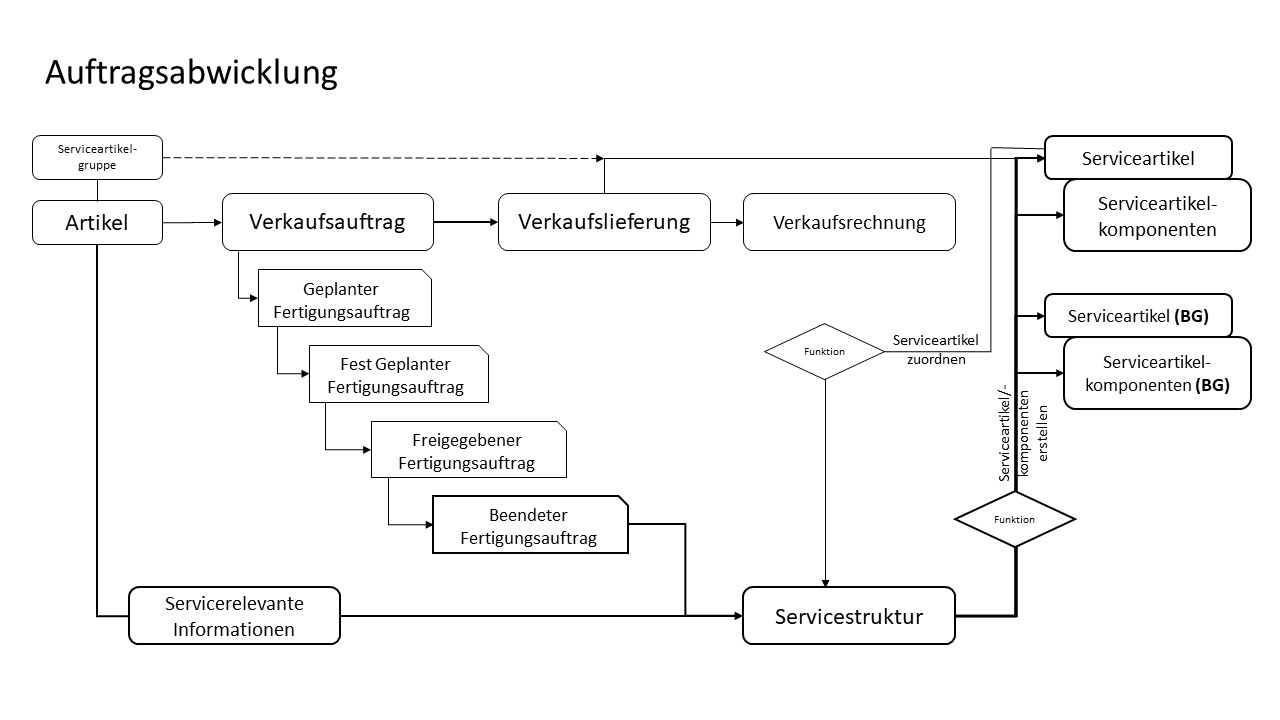
A service structure history is used to document the lifecycle of component replacements and changes within the respective service item from the service order.
Note
Unlike in production orders, service components, meaning service items and items, are always maintained with quantity 1.
Only service component lines marked as Accessories can be entered with a different quantity.
The following section describes the additional KUMAVISION factory365 features for Service Management in Microsoft Dynamics 365 Business Central.
Setup#
Before you can use the service integration in KUMAVISION factory365, you must first set up several things.
The following table describes a series of tasks, with links to the topics that describe them.
| To | See |
|---|---|
| Set up the unique identification code for service structure records | Set up the number series for service structures |
| Define how your company works with service structure history | Set up initialization of the service structure history |
| Set up codes to categorize your items in the service components | Set up service part type codes |
See also:
Set up the number series for service structures#
The basic setup for Service Management in Microsoft Dynamics 365 Business Central is maintained on the Service Setup page.
On the Service Structure FastTab, you must first specify a number series for the service structure in the Service Structure No. field.
To set up the number series for service structures#
Use Search to open the Number Series page. Choose New on the action bar to create a new number series.
Then use Search to open the Service Setup page. Specify the number series you created in the Service Structure No. field.
See also:
[Create number series]((https://learn.microsoft.com/de-de/dynamics365/business-central/ui-create-number-series){:target="_blank" rel="noopener"}
Set up initialization of the service structure change log#
The time at which the service structure change log is initialized is defined in the "Initialize Service Changes" field on the "Service Structure" FastTab of "Service Setup".
The following options are available:
| Option | Description |
|---|---|
| blank | No history is created. |
| When creating the service structure | The change log is initialized when the service structure is created. |
| When shipping from the service order | The change log is initialized when shipping from the service order. |
Set up initialization of the service structure change log#
To do this, use Tell Me to open "Service Setup".
In the "Initialize Service Changes" field, select the option you want to use.
See also
Set Up Codes for Service Part Types#
Set up the "Service Part Types" page according to your individual requirements so that the assignment can be made when an item is created.
To set up service part types#
Use Tell Me to open the "Service Part Types" page. Choose "New" on the ribbon to define a new service part type that can be used as the default value for the service item component in the item master data.
Note
This default value is copied from the item master data to the service structure when the service structure is created and is used to identify the service component.
See also
Set up service management
Set Up Target Table for Service Item Components#
When service items are created from the service structure, the associated service item components are assigned to the respective service item.
When connected to Dynamics 365 Field Service, the Service Item Components must remain empty because this is a technical limitation of Field Service integration.
To ensure that Field Service can still retrieve all relevant component information, this feature extension provides the data normally supplied by Microsoft Dynamics 365 Business Central1 standard on the Service Item Components table through the separate D365 FS Service Components table.
How to set up initialization of the target table for service item components#
You define this using the Service Structure Component Link field in Service Setup on the Service Structure FastTab.
Warning
The setup can only be changed once from Service Item Components (Standard) to Field Service Components. It cannot be changed back afterward.
The following options are available:
| Option | Description |
|---|---|
| Service Item Components | The service item components are written to the Microsoft Dynamics 365 Business Central1 Service Components table. |
| Field Service Components | The service item components are written to the D365 FS Service Components table provided for retrieval by Field Service. |
Create a Service Structure#
You create a service structure by using the "Create Service Structure" action on the ribbon of the overview list and the card for "Finished Production Orders" / "Finished E+D Orders".
Actions on the Ribbon#
Create Service Structure#
This functionality creates the service structure, or service structures for a quantity greater than 1, from the finished production order / finished E+D order.
This means that the lines from the finished production order are transferred to the service structure in a service-specific way.
Production parts (assemblies) are split into quantity 1. If a production order contains an assembly with a quantity of 2, two separate lines are created in the service structure, each with quantity 1.
Inventory parts / purchased parts are transferred to the service structure in the quantity from the production order.
Creating the Service Structure
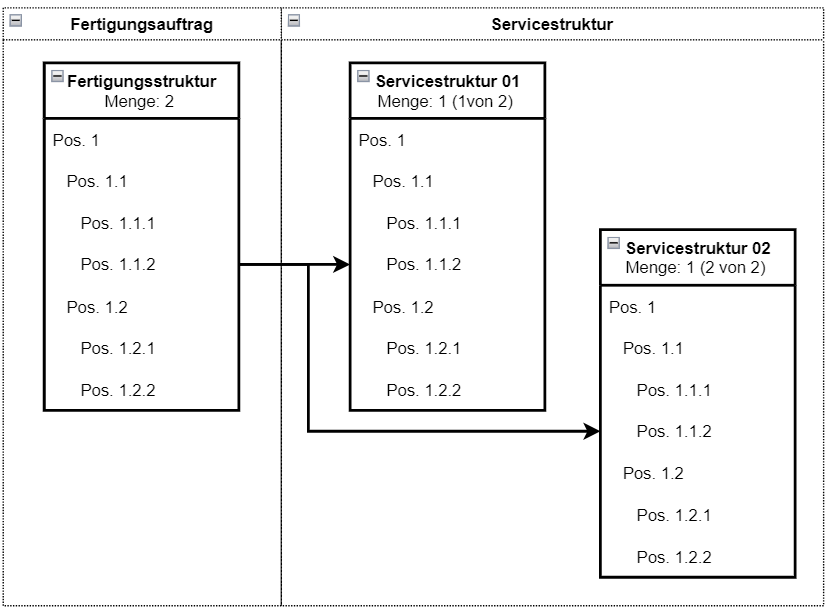
The default value / content of the "Service Component Type" and "Service Part Type" fields from the item master data is transferred to the service structure line.
Show Service Structure#
The service structure overview opens with a filter on the selected production order number.
Service Structure#
The service structure consists of header and line information.
The individual FastTabs and actions on the ribbon of the service structure are described below:
General FastTab#
| Field | Description |
|---|---|
| No. | Assigns a new service structure number from the defined number series. |
| Status | This is an option field that is controlled by the corresponding selection on the ribbon. New This status is set automatically when a new service structure is created. In Process In this status, the service structure can be edited. Certified Indicates that the service structure is ready for creating service items. Service items can only be created in the "Certified" status. Expired If this status is set, the service structure can no longer be edited, even if no service items have been created yet. |
| Created On | Specifies when the service structure was created. |
| Entry No. | Specifies the number / consecutive number of the change. |
| Change Type | Initialization This is the initial entry when the service structure is created. Manual Change The service structure was edited by a user. Service Order Change The change was made based on a shipment from the service order. |
| Change Status | The available statuses are "In Process" and "Completed". |
| Change Date | Specifies the date of the change. |
| Change Time | Specifies the time of the change. |
| Item No. | Specifies the item number of the produced item (origin). |
| Description | Specifies the description of the produced item (origin). |
| Item Tracking Code | Specifies the item tracking code of the produced item (origin). |
| Serial No. | Specifies the serial number of the produced item (origin). |
| Service Item Group | Specifies the service item group of the produced item (origin). |
| Assignment of Service Item No. (produced item) | Create automatically A service item for the produced item (top level) is created using the "Create Service Item (and Service Item Components)" function. Assign manually Before the "Create Service Item (and Service Item Components)" function is run, an already created service item must be assigned to the produced item (top level). This is the case if the "Create Service Item" setting is set to Yes in the service item group of the produced item. |
| Base Unit of Measure Code | Specifies the base unit of measure of the produced item (origin). |
| Quantity (Base) | Specifies the quantity (base) of the produced item (origin). |
Source FastTab#
| Field | Description |
|---|---|
| E+D Position | Shows the E+D position of the production order line from which the service structure was created. |
| Production Order Status | Finished, because service structures can only be created from finished production orders. |
| Production Order No. | Shows the production order number from which the service structure was created. |
| Production Order Line No. | Shows the production order line number from which the service structure was created. |
Service Structure Lines FastTab#
| Field | Description |
|---|---|
| Structure Position | Shows the structure of the service structure. |
| Item No. | Specifies the item number of the service structure line (position). |
| Description | Specifies the description of the item on the service structure line (position). |
| Serial No. | If the item is subject to serial number tracking, the serial number of the item on the service structure line (position) is specified here. |
| Base Unit of Measure Code | Specifies the base unit of measure of the item on the service structure line (position). |
| Quantity (Base) | Specifies the quantity of the item on the service structure line (position). |
| Service Component Type | Specifies the target type in the service item components: blank Is not transferred to the service item components of the service item. Item Is transferred as an item to the service item components of the service item. Quantity per service item component line = 1. Accessory Is transferred as an item with the additional "Accessory" indicator. (The quantity in the service item component line can be <> 1.) Service Item A separate service item is created and transferred to the service item components of the service item. The Service Component Type can be predefined on the item and is copied from the item when the service structure is created. |
| Service Part Type | The "Service Part Type" field can be used to display customer-specific grouping of accessory parts (for example, spare parts, wear parts, etc.) for informational purposes. The Service Part Type can be predefined on the item and is copied from the item when the service structure is created. |
| Service Component Position | Shows the structure position in the service item components within the respective service item. |
| Service Item No. | Shows the number of the linked service item. |
| Service Shipment No. | Shows the service shipment number with which the item from the respective service structure line was shipped/delivered. |
| Service Shipment Line No. | Shows the service shipment line number within the shipment with which the item from the respective service structure line was shipped/delivered. |
| Service Shipment Date | Shows the date of the service shipment. |
The following section describes additional fields—the most relevant ones—that you can show individually if required:
| Field | Description |
|---|---|
| Description 2 | Shows an additional description (Description 2) of the item on the service structure line (position). |
| Production Order No. | Shows the production order number from which the service structure originated. |
| Production Order Line No. | Shows the production order line number from which the service structure line originated. |
| Production Order E+D Position | Shows the E+D position of the production order line from which the service structure originated. |
| Variant Code | Specifies the variant of the service structure line. |
Actions on the Ribbon#
The following actions are available for editing and maintaining service structure lines:
Insert New Structure Line#
You can use this action to insert additional lines into the service structure.
Insert New Substructure Line#
The current line becomes an assembly, and another line is inserted below it in the service structure.
Modify Structure Line#
The current structure line is modified.
Split Structure Line#
For quantities greater than 1, the line can be split into additional structure lines with quantity 1.
Example:
A structure line with quantity 10 is split into 10 individual service structure lines with quantity 1.
Delete Structure Line#
The selected structure line is deleted.
Service Order Processing#
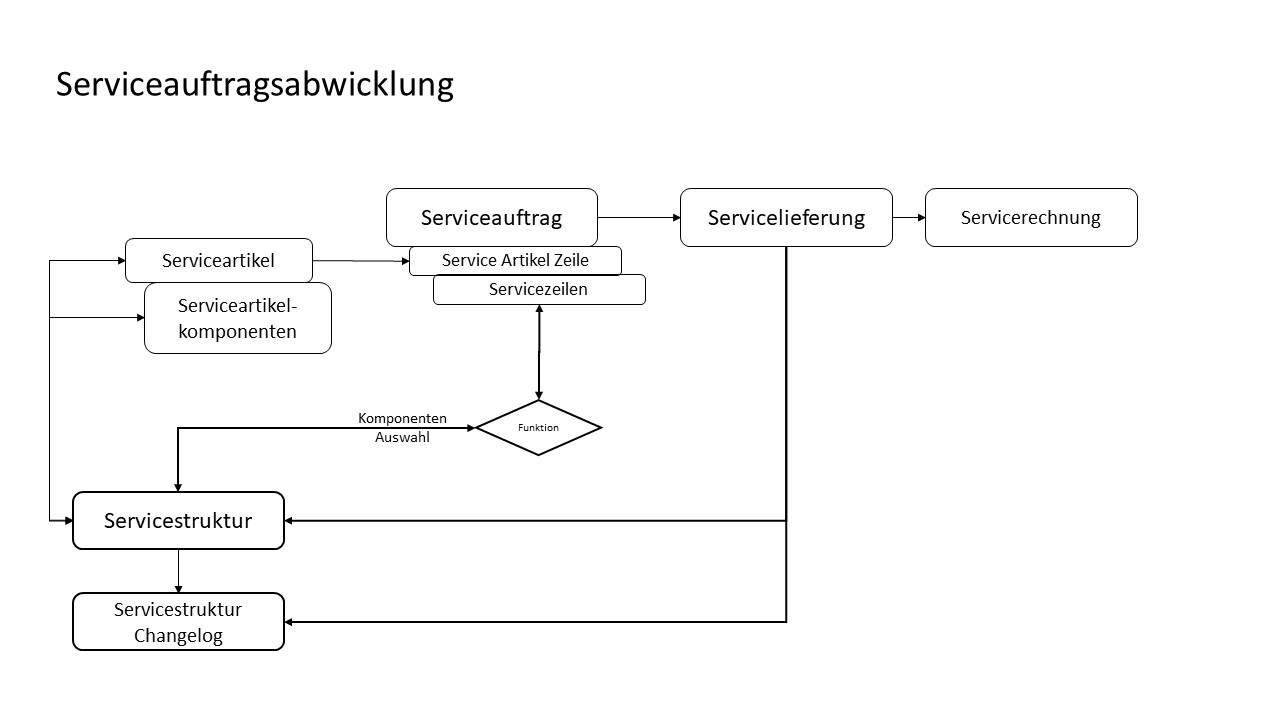
Service Item Worksheet / Service Lines#
Select Components#
The "Service Item Worksheet" and the "Service Lines" have been extended with the "Select Components" menu item.
This shows the service components of the service item within the linked service structure.
Note
The functionality described below is only available if the service item is linked to a service structure.
In addition, the following actions can be performed:
Insert New Component Line#
The item entered under Item No. (Action) is inserted into the service item line. Upon shipment, the entry is made in the structure and in the service item components.
Modify Component Line#
The selected component line is prefilled and available for editing. The item number and/or the quantity can be changed. These values are inserted into the service item line and, upon shipment, transferred to the structure and to the service item components.
Delete Component Line#
The action type "Delete" is set for the selected component line and entered in the service item line.
Direct Item Entry#
When an item is entered directly in the service line or the service item worksheet, the actions are available in the same way. The same applies here: If the service item is not linked to a service structure, Microsoft Dynamics 365 Business Central standard functionality applies.